
This article describes the steps to configure Code Editor PCF.
1. Download the component editor project from the repo CodeEditorRepo
2. Follow the steps in the repo README.md document in order to generate the CodeEditorSolution.zip
3. Import the CodeEditorSolution.zip solution.
4. Go to the form and open the Field Properties Window.
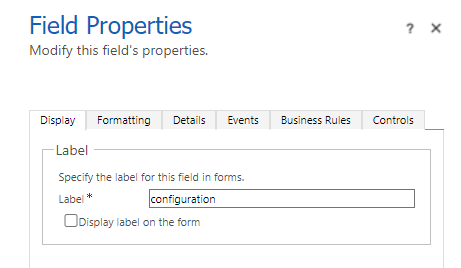
5. Click on the Controls tab, then click on Add Control..
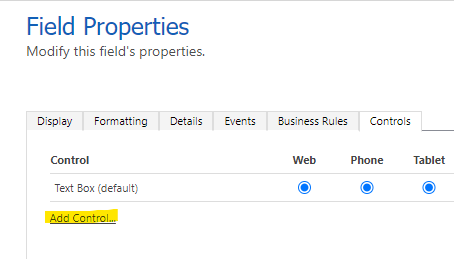
6. The Add Control window is opened, Select Code Editor and click on Add button.
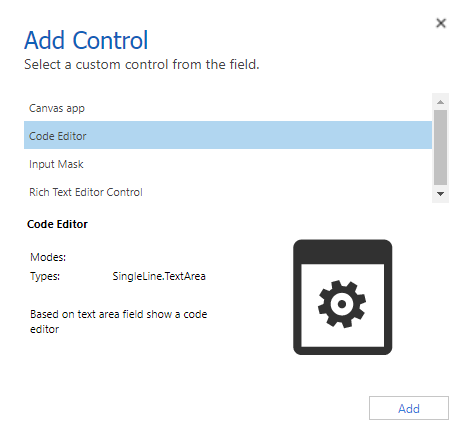
7. Select the checkboxes where the control should show as default.
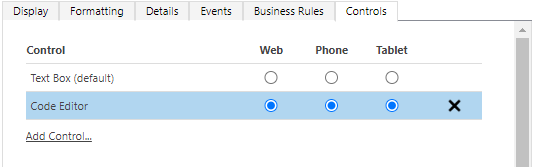
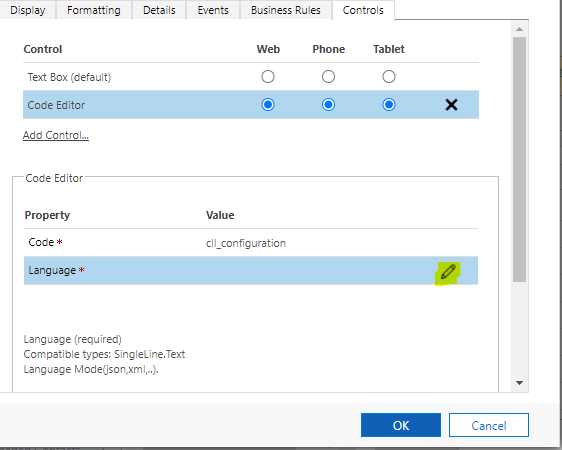
8. Click on Edit icon in front of Language Property.
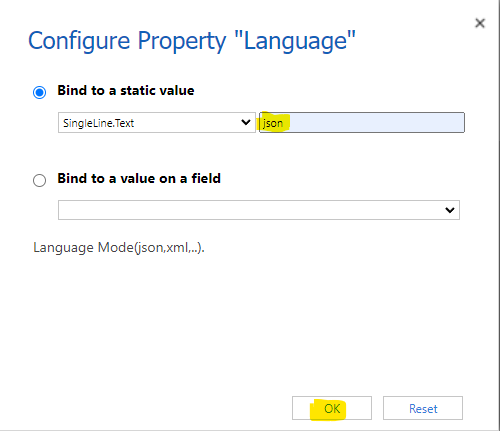
9. The Configure Property window is open, select Bind to a static value option and type the language mode and click on OK button.
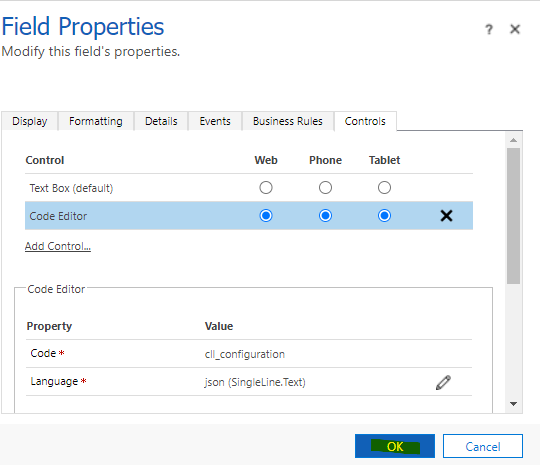
10. Click on OK button on Field Properties window.
11. Save and Publish the Form changes.
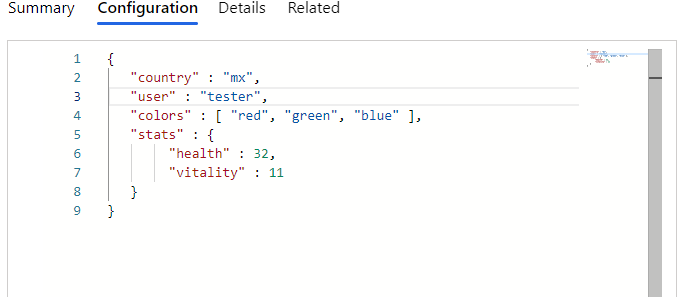
In the example set the Language JSON, the result is below:
The Code Editor Languege property acept the below values
Languages that have rich IntelliSense and validation:
- TypeScript
- JavaScript
- CSS
- LESS
- SCSS
- JSON
- HTML
Languages with only basic syntax colorization:
- XML
- PHP
- C#
- C++
- Razor
- Markdown
- Diff
- Java
- VB
- CoffeeScript
- Handlebars
- Batch
- Pug
- F#
- Lua
- Powershell
- Python
- Ruby
- SASS
- R
- Objective-C
New Comment